

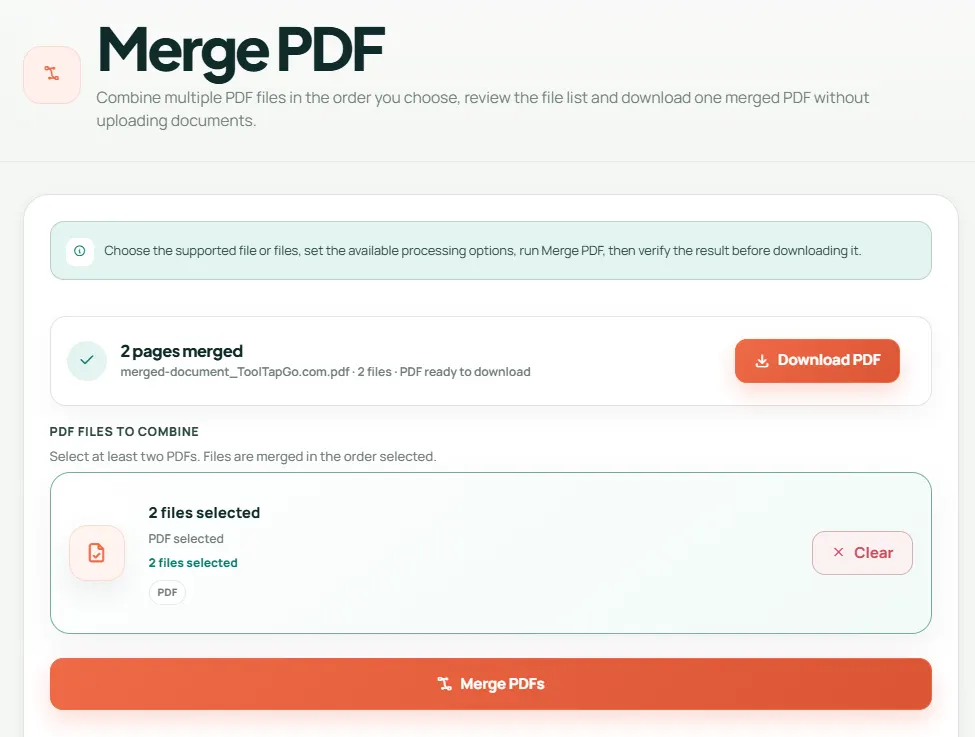
Merging PDFs is useful for applications, invoices, reports and document packs, but the order and privacy of the pages matter. A browser-based merger can keep the workflow simple by processing files on the device instead of sending every document to a remote conversion queue.
Prepare the source files
Open each PDF and confirm that it is the correct version. Rename files clearly, for example 01-cover.pdf, 02-report.pdf and 03-appendix.pdf. Clear filenames reduce the risk of assembling the pack in the wrong order.
Arrange the documents
- Open the Merge PDF tool.
- Select at least two PDF files.
- Arrange them in the order they should appear.
- Run the merge and download the new document.
- Open the result and inspect the first page, transitions between files and final page.
Check quality and page orientation
A merger normally preserves the source pages, including their original portrait or landscape orientation. If one file is sideways, correct it with the Rotate PDF tool before creating the final pack. Check bookmarks and form behaviour if the source files rely on advanced PDF features.
Handle confidential PDFs carefully
- Use a trusted device and a private browser session when appropriate.
- Do not leave downloaded copies in a shared Downloads folder.
- Confirm whether the selected tool processes files locally.
- Delete temporary files after the recipient confirms delivery.
- Apply a password only when the recipient has a safe way to receive it separately.
When merging is not enough
You may need to remove blank pages, reorder individual pages, add numbering or insert a signature. Use Organise PDF, Add Page Numbers or Fill and Sign PDF before sending the final document.
Final checklist
Confirm the filename, page count, order, readability and file size. Open the finished PDF in a second viewer when the document is important, because different PDF readers can expose issues that are easy to miss during editing.
Continue with the right tool
Use the related workflow above, or browse the full ToolTapGo directory for a different task.